tesla toolbox 3 buy diagnostic
one day access
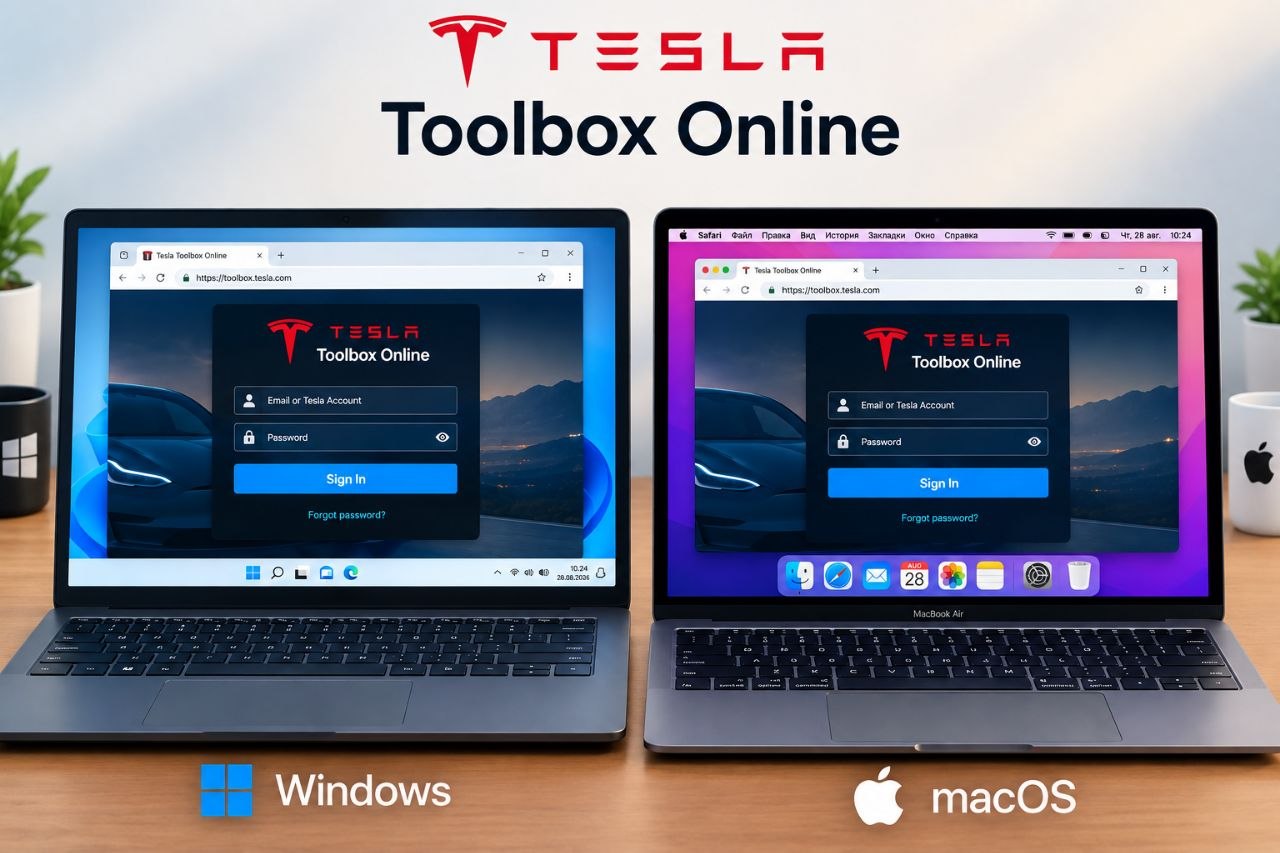
Toolbox for service vehicles capabilities include:
- Ability to physically connect to the car with a laptop to view information and execute commands
- Ability to place the vehicle in Service Mode Plus to access and diagnostics applications
Toolbox Web Vehicle Connections and Set Up
Initial Set Up
Initial setup may vary, depending on operating system.
These instructions are designed for Windows 10.
These instructions are designed for Windows 10.
- Open the Windows "Control Panel".
- Open "Network and Sharing Center". ("Network and Internet" may need to be clicked first.)
- Click on the Ethernet connection in the Connections section.
- Click the "Properties" button.
- Select "Internet Protocol Version 4 (TCP/IPv4)".
- Select the "Properties" button.
- Select the "Use the following IP address" radio button.
- Enter the IP Address "192.168.90.125". and 255.255.255.0 mask
- Click "OK".
- Click "Close" on the remaining popup windows.
Allow Toolbox Communication
To allow Toolbox to communicate with Tesla vehicles, the following change must be made in Chrome:
- Click the "Lock" icon to the left of the Toolbox URL.
- Click "Site settings".

- For the “Insecure content” setting, select “Allow” .
Close the “Settings” tab. - Reload the Toolbox webpage.
Connecting to the Vehicle
After completing the initial setup, connect to the vehicle with a laptop.
- Plug the Ethernet diagnostic cable into the laptop.

old diagnostic port model 3 Y

2022+ model 3 Y RJ45 diagnostic port

since april 2024 OBD2 enet
- Plug the other end of the cable into the diagnostic port of the vehicle.
- Location of the diagnostic port varies per model. See the Service Manual > Best Practices > Diagnostic Connector Location to learn where the port is on the model being diagnosed.
- In Toolbox, click "Connect to Vehicle" link in the black bar on the left.
- The Connect Locally popup appears.

- The Connect Locally popup appears.
- Click the "Connect" button.
The grey circle should turn green indicating a successful connection. Once connected, Actions and Dashboards in Toolbox Web can be used on the vehicle.
To search and run Actions:
- Connect to a vehicle
- Select the "Actions" tab under the search bar.
- Search for the Action by other using part of the Action name or searching for the full Action name.
- Click on the intended Action.
- Click on "Run".
How to unlock gateway:

you can buy toolbox 3 token
Open https://toolbox.tesla.com/
use chrome
quickly press stop loading pagebefore redirecting long address
stop needs to be pressed from 1 to 2 seconds
should be an empty window

Press F12 button
or
Press right mouse click Inspect
Application
Storage
Local storage
toolbox tesla com

replace bouncer.priv
with toolbox.user
(all lowercase)copy token ctrl C
paste token Ctrl V
to the right of toolbox.user
replace bouncer.pub
with odinConnectionEnv
to the right of odinConnectionEnv type production
press reload page
now you can use toolbox one day
how about price?
one day access cost 20 $
how can I buy:
-
paypal
-
usdt
If you need help
I can help with anydesk
WhatsApp:
+38 050 809 2007
Telegram:
@hddhelpcomua
AUTOPILOT / FULL SELF-DRIVING
Tesla Autopilot у дії
П'ять оригінальних роликів Tesla про те, як працює Full Self-Driving. Відео завантажується лише після натискання Play.
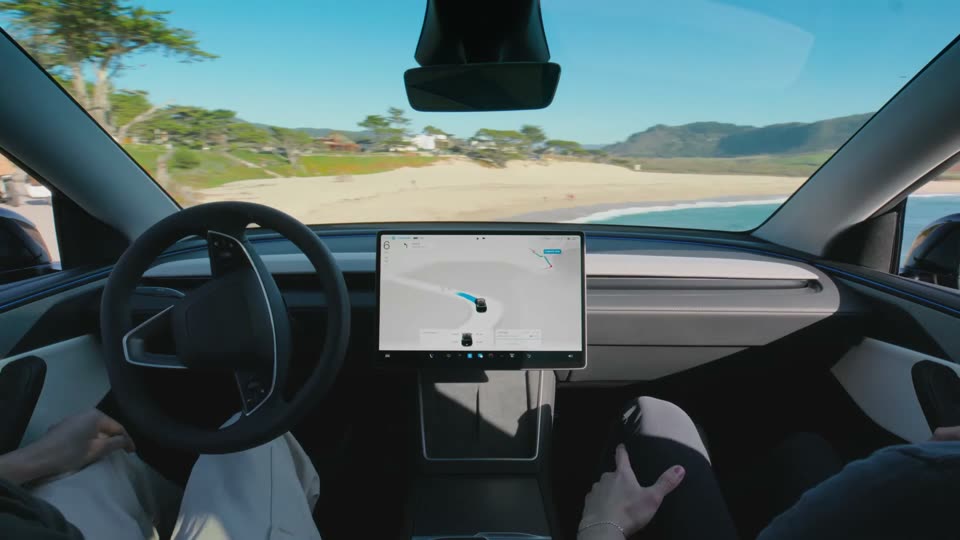 Full Self-Driving (Supervised)Автопілот веде авто у реальному міському потоці.
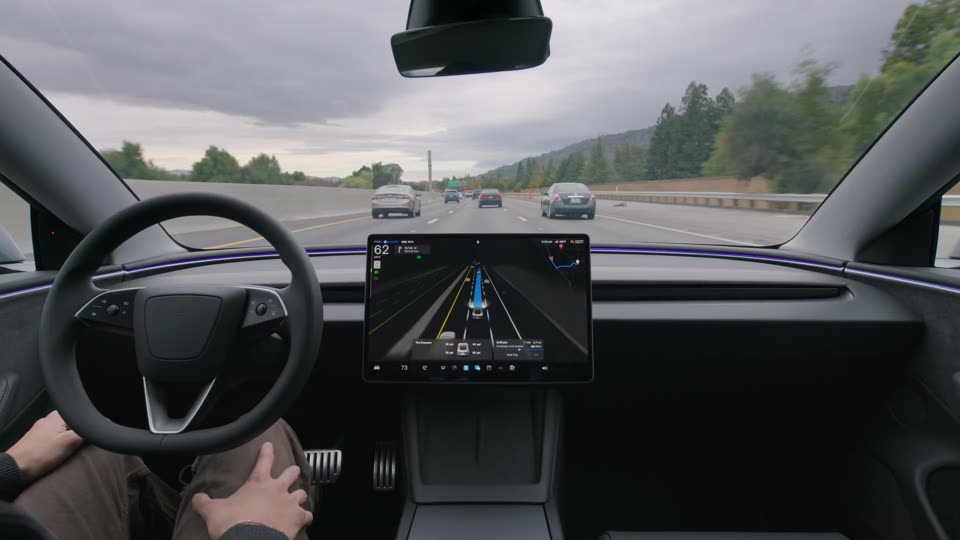 FSD на трасіПерестроювання та дистанція на швидкості.
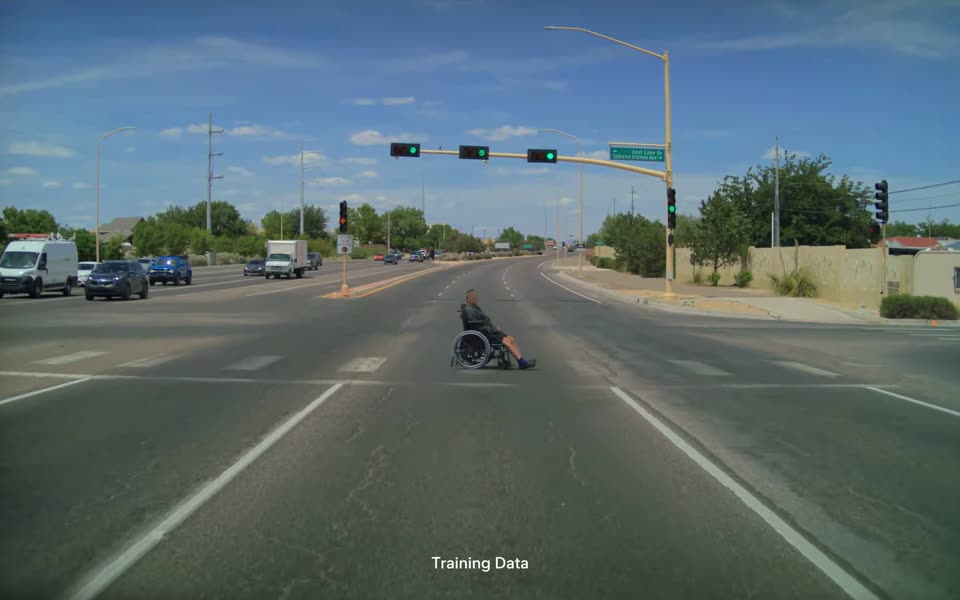 Складні сценаріїРеакція на те, чого немає у правилах руху.
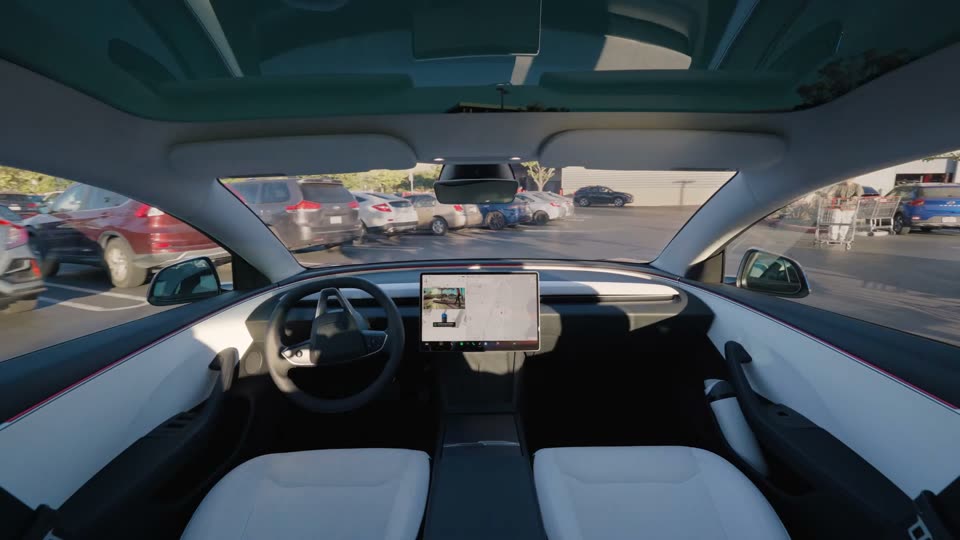 Actually Smart SummonАвто саме виїжджає з паркомісця до вас.
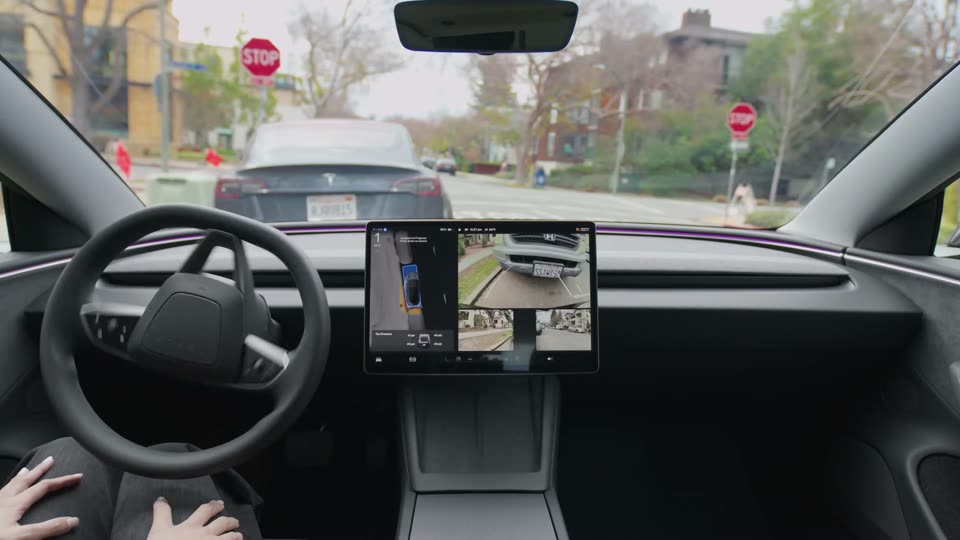 AutoparkАвтоматичне паркування в один дотик.